 CloudMounter
 Get the access to a specific Amazon S3 bucket with CloudMounter
Granting Access to an S3 Bucket for a User Below you can find a step-by-step guide on how to set access to a specific Amazon S3 bucket for a single user (a bucket “user-lion” in the example): Go to My Security Credentials. Select Get Started with IAM Users. Select the Create Policy option in the Policy section, then select Create Your Own […]
Is it necessary to install any third-party packages while using CloudMounter?
FUSE Support and Troubleshooting in CloudMounter The onsite version of CloudMounter supports the following versions of FUSE. The software will not use the other versions of FUSE in its work, despite being installed on the computer. Benefits of working with FUSE: You can get access to additional options of disks’ mounting (Disable the generation of […]
Is there a size limit on files uploaded to Dropbox, Amazon S3, etc.?
File Size Limits for Cloud Storage Services Yes, the file size limits are as follows: Dropbox – 375 Gb; Google Drive – 5 TB; Amazon S3 – 5 TB; Microsoft OneDrive – 250 Gb; OpenStack Swift – 5 GB; WebDAV servers – depends on the server settings (usually 50 MB); FTP and SFTP servers – depends on […]
Are there any peculiarities of using encryption in CloudMounter?
Encryption Limitations and Recommendations in CloudMounter Please keep in mind the following factors while using the encryption feature in CloudMounter: Enabling the encryption globally in the app’s preferences or for the specific type of connection may negatively influence the display speed of the directories’ content, even if they do not have any encrypted data. So, […]
I receive a “Low space” notification. What should I do?
Managing Cache Storage in CloudMounter When working, CloudMounter cache files when dealing with them. However, if there is a big number of files or they are too large, they can take a lot of space on your system disk. In order to solve the problem you can: Free up additional space on your system disk. Choose another […]
How to make mounted volumes visible and accessible to other users?
Sharing Mounted Volumes with Other Users in CloudMounter If you wish other users to see and access your mounted volumes when Fast User Switching is used you need to: Use the site version of CloudMounter. Install one of the following versions of FUSE for macOS. Check “Make this drive visible to other accounts on this computer” […]
Where are the mounted disks located?
Locating Mounted Disks in CloudMounter If you do not know the version of the software you possess, follow the steps below: Mount the disk via CloudMounter; Open Terminal found in Finder > Applications > Utilities; In Terminal, paste the following command: mount; Press Enter. Below this command, you will see the list of all the disks and […]
Can I add services that are not listed in CloudMounter?
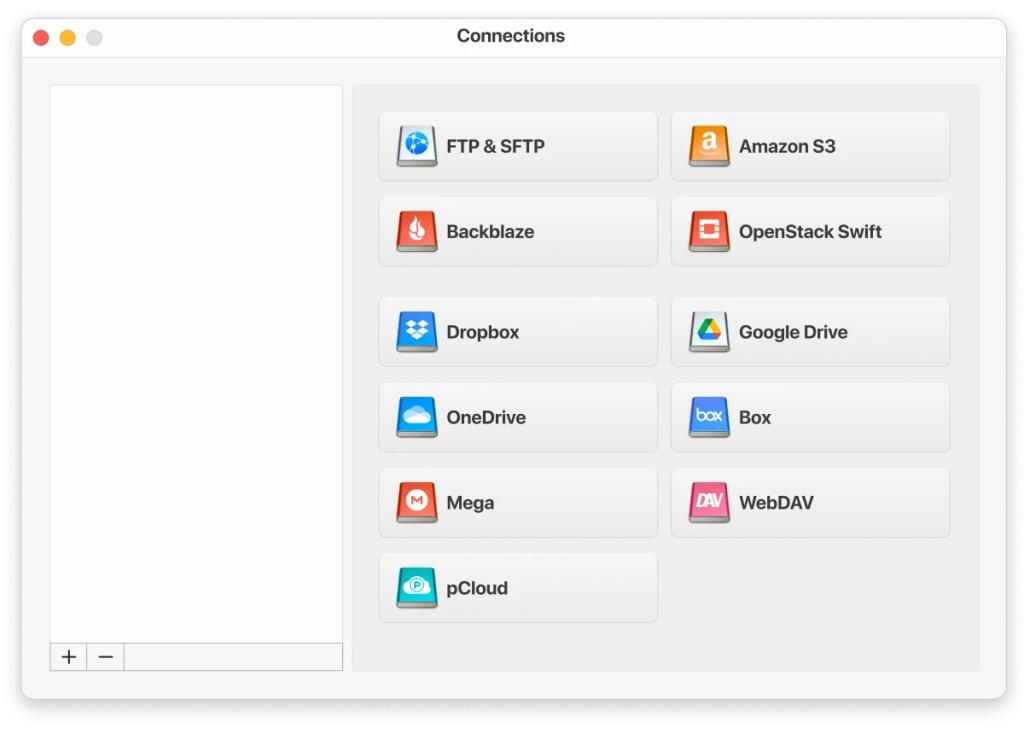
Connection Types for Various Cloud Services Check the table below to find the answer what kind of connection to choose in order to add and benefit from various services. Name of the service What connection to use Next Cloud WebDAV OwnCloud WebDAV ShareFile by Citrix FTP Live Drive FTP WD My Cloud FTP Seedhost.eu(seedbox) FTP […]
What do the icons on my files mean?
File Status Icons in CloudMounter When opening your mounted drives in Finder, you may notice special icons on your files. They are there to let you know at a glance the status of your uploads. There are four icons available and their meaning is as follows: The file is being downloaded. The file is being […]