Google Drive vs Microsoft OneDrive Storage: Pros and Cons

Having a hard time choosing between Google Drive vs OneDrive? Both services promise to keep your files secure and accessible, and that’s exactly why it can be so hard to decide which one to choose. In this guide, we’ll compare their storage space, speed, security, and pricing.

We’ll also look at a desktop app called CloudMounter, which lets you manage multiple cloud storage platforms simultaneously and interact with them in File Explorer or Finder.

Key takeaways: OneDrive vs. Google Drive

Here’s a summary of our Microsoft OneDrive vs. Google Drive comparison and how they stack up:

  • For personal use: Google Drive is often better for casual users. It offers a generous 15 GB of free storage and integrates perfectly with Google’s own apps like Docs and Sheets.
  • For business: OneDrive offers great value in its business plans, and its deep integration with Microsoft 365 improves productivity and collaboration.
  • For creatives: Google Drive takes the lead here. It handles large video files well and has a massive 5 TB upload limit. OneDrive’s limit is much smaller at 250 GB per file.
  • For desktop use: With its office tools, OneDrive is the leading option for those who predominantly use a desktop app. 
  • For security: OneDrive has some extra tools, such as a “Personal Vault” and password protection, and the ability to set expiration dates for access.
OneDrive vs Google Drive

Differences between OneDrive and Google Drive

Both services work on Windows, macOS, iOS, and Android. However, they’re very different in their approach and features. Your choice often depends on which ecosystem you already use. 

If you’re not quite sure which option makes sense, we compare OneDrive and Google Drive below in our full review. We’ll explore storage, sync, search, and sharing.

Storage space

When it comes to free storage, Google Drive is the clear winner. It gives you 15 GB of free space right away, but your Gmail attachments and Google Photos count against your 15 GB. For most casual users who primarily store documents, this amount of space is sufficient for a long time.

OneDrive’s free plan gives you 5 GB to start. That space can fill up fast, especially since Outlook attachments use the same storage. When your OneDrive is full, it can limit your email usage and make sending or receiving messages challenging.

Synchronization

Unlike Google Drive, OneDrive has selective synchronization of its files. So if users need this feature, OneDrive is a better choice.

File search

Google Drive wins this category by a wide margin. It uses similar smart tech as Google Search, giving fast results and even being able to predict what you’re looking for. OneDrive’s search is simpler. It can use AI to recognize people or objects in photos, but it doesn’t have the powerful content search that makes Google Drive so useful.

File sharing

OneDrive gives you more control. You can set passwords, expiration dates, and even stop people from downloading files.

Manage files on Google Drive and OneDrive simultaneously

If you have to choose cloud storage, which one should you get? Why force yourself to choose just one? You can get the best of both worlds by using them together. This lets you take advantage of Google’s free storage while also using OneDrive with Microsoft Office.

Moving files the old way can be slow. You have to download everything to your computer and then upload it again, which takes time and uses up your hard drive space. Fortunately, there’s an easier way. You can use a cloud storage manager to handle the process, which makes it much simpler.

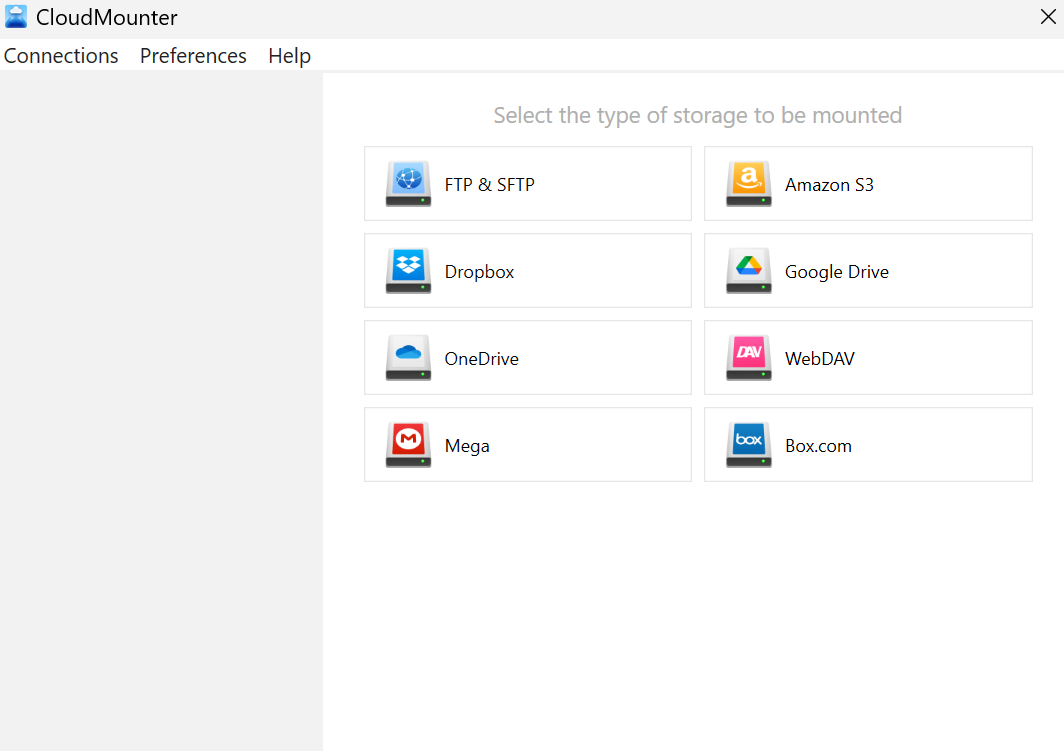
CloudMounter is a one-stop solution. It lets you mount Google Drive and OneDrive as local drives on your Mac or PC. Just follow these simple steps to get started:

1. Download and install the desktop app for macOS or Windows.

2. Open the application and choose Google Drive or OneDrive.
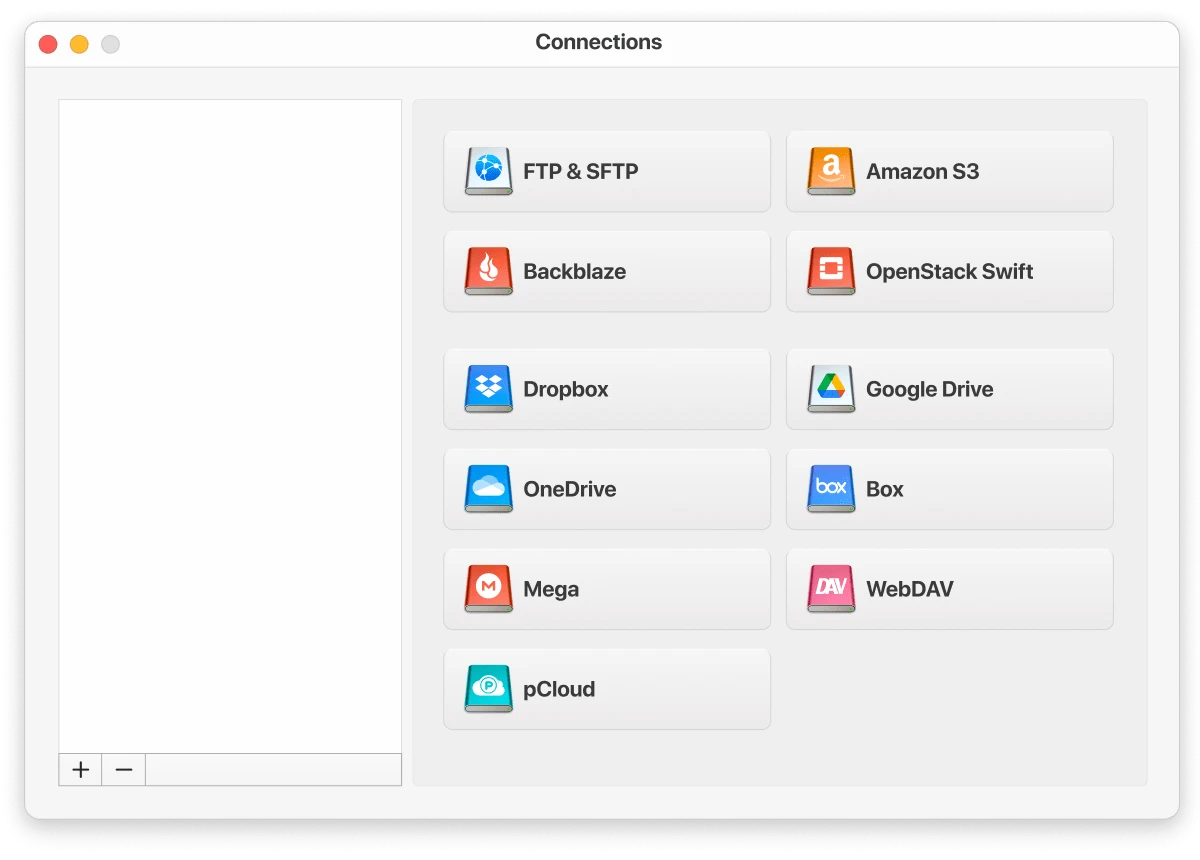
CloudMounter on Mac
CloudMounter on Windows PC

3. Sign in with your login credentials.

4. Click on “Mount” to map the storage as a local drive.

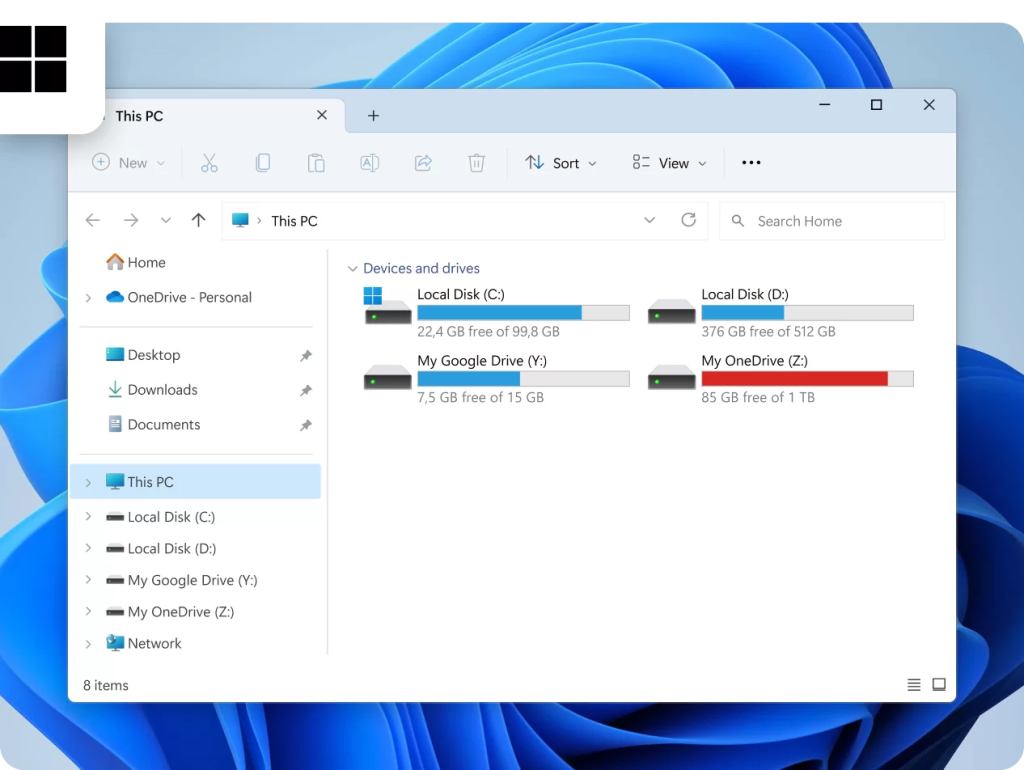
5. Now you can see your cloud storage in Finder or File Explorer just like a local drive. You can drag and drop files between different cloud platforms the same way you would with any other file on your computer.
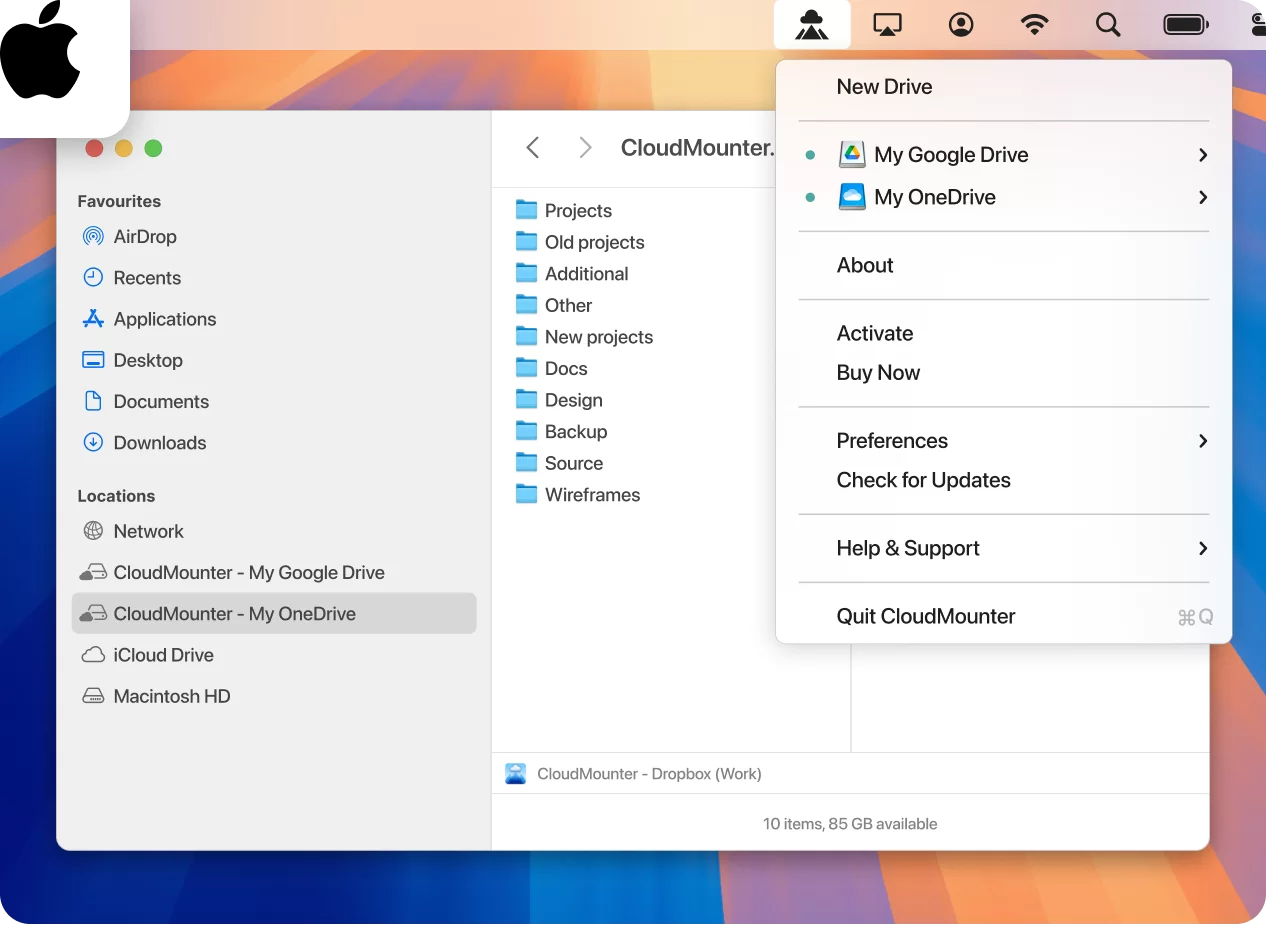
OneDrive and Google Drive in Finder on Mac
OneDrive and Google Drive in File Explorer on PC
Warning!  For online documents like Google Docs or Sheets, this tool only saves them as links that can be moved between folders as small files. These documents can’t be opened after copying. If you move them from the cloud to your local drive, they will also be removed from Google Drive.

Important CloudMounter’s features

Our desktop app makes it incredibly easy to use multiple cloud storage platforms at the same time. It has several features that make managing multiple clouds far easier than using each service separately.

Core functionality

The core job of the tool is to let you mount cloud drives as local disks, but it goes further than that. Here are some ways it helps:

Broad cloud drive support:

You can mount multiple cloud storage services and remote servers. It supports Dropbox, AWS S3, and WebDAV, among others. They all appear as if they were local drives on your computer.

Direct file access:

You don’t need to download files to work on them. With our tool, you can manage cloud files right in File Explorer or Finder.

Multi-cloud management:

The program offers a centralized interface for all your clouds. You can connect and manage unlimited cloud accounts (like multiple OneDrive accounts) and services. This is perfect for teams using shared drives across different platforms.

Privacy and security

If privacy matters to you, our cloud manager can offer protections storage services themselves might not provide:

Client-side encryption:

Our software encrypts your files automatically using 256-bit AES encryption. Even the cloud provider can only see scrambled data. Accessible only with the user’s unique decryption key. This gives you a level of privacy that cloud services don’t provide on their own.

Integration with native tools for storing login info:

Your login info stays safe and easy to use. Passwords are stored securely in macOS Keychain or Windows Credential Manager, so you don’t have to remember a bunch of different passwords.

Trusted connections:

The application supports secure access to remote servers. It uses modern protocols like SFTP, FTPS, and FTPES. This guarantees that your connections are always safe from eavesdropping.

Performance and convenience

Using multiple cloud apps can slow down your computer because they sync in the background. CloudMounter avoids this.

Without odd cloud apps:

You don’t need to install multiple cloud apps that use up your RAM. The program runs in the background, keeping things faster and simpler.

Minimal resource usage:

The on-demand access feature helps save local storage. It doesn’t download everything or run heavy syncing, so your computer uses less power. You can open cloud files when you need them and keep your storage free, which is great if your device has limited space.

Work offline on macOS:

You can keep working on your Mac even without the internet. Access cached files, which is handy for travel or weak connections, and your changes will sync once you’re back online.

The Verdict

So, which is better, Google Drive or OneDrive? Here’s our verdict: Google Drive is best for people who want more free space and powerful search features, especially if you use other Google services. OneDrive works better for Microsoft 365 users and businesses, thanks to faster syncing and tight Windows integration.

Your choice mostly comes down to which app suite you prefer. Looking at the comparison features we covered above, you don’t have to stick to just one. CloudMounter lets you use the best parts of both Google Drive and OneDrive at the same time.

Frequently Asked Questions

No, you don’t have to pick just one. You can use both OneDrive and Google Drive together with a desktop app. This lets you get Google Drive’s free storage and search plus OneDrive’s Microsoft integration for more space and flexibility.

Some downsides include privacy concerns since Microsoft holds the encryption keys. There are also limits on file types and sizes for syncing, and some users say file management feels basic. Reddit users and Microsoft Learn report that syncing very large numbers of files can be tricky, and the sync prompts can be annoying. It’s also not meant to be a full, versioned backup solution.

Both are pretty safe to use with AES 256-bit encryption and two-factor authentication, but which is more secure? OneDrive’s business versions add advanced threat protection. However, neither offers true client-side, “zero-knowledge” encryption on their own. This means the companies can technically access your data. CloudMounter puts privacy first by giving you client-side encryption and letting you store sensitive data in your macOS Keychain or Windows Credential Manager.

OneDrive’s paid plans range from $1.99 for 100 GB to $9.99 for 1 TB, often with Microsoft 365. Google Drive’s paid plans start at $1.99 for 100 GB. The free tier for OneDrive gives 5 GB, and Google Drive offers 15 GB.

If you want a budget-friendly way to use multiple cloud services, CloudMounter lets you use all the free storage from OneDrive, Google Drive, Dropbox, S3, MEGA, pCloud, WebDAV, and other cloud services at the same time.

Google Drive is better for photos with its 15 GB free storage, Android integration, and AI search in Google Photos, which has a mobile app with editing tools. OneDrive is fine for general files, but it has less free space and fewer photo features.

With CloudMounter, you can manage photos from both services just like regular folders on your computer.