 CloudMounter
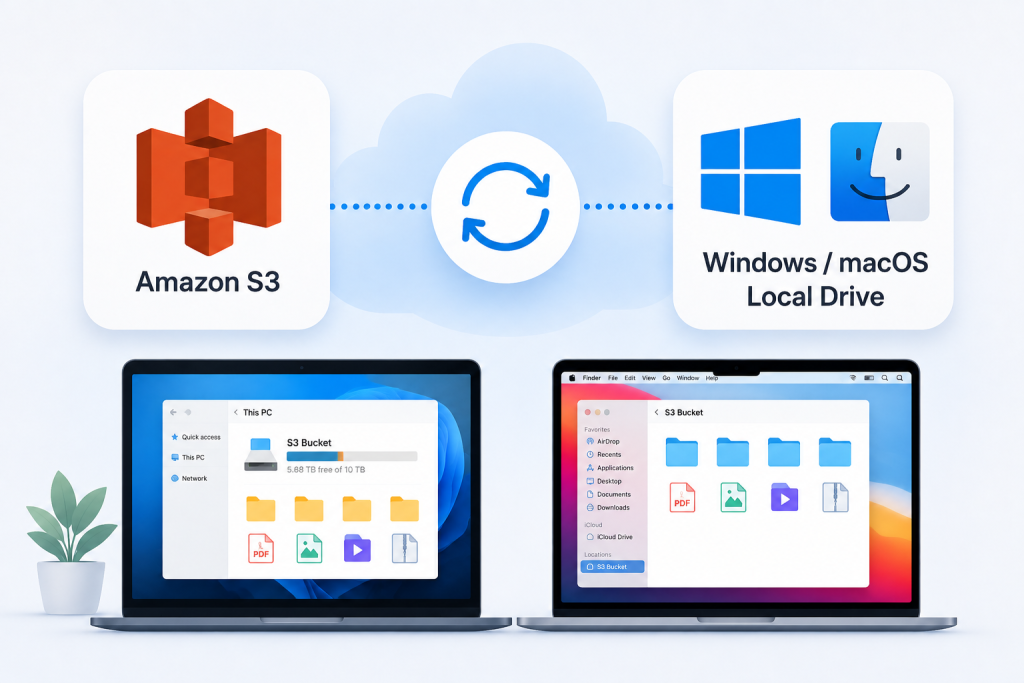
You can mount an Amazon S3 bucket on both Windows and Mac EC2 instances, but you need extra software to make that happen. S3 is built for cloud storage, so Windows and macOS don’t recognize it as a native file system.
A mounting tool acts as a bridge between your computer and S3. It turns simple actions like opening, copying, and saving files into commands S3 understands. After setup, you can access the bucket from File Explorer or Finder instead of going through the AWS console every time.
This guide covers the main ways to mount S3 on EC2.
Prerequisites
You’ll need the following before mounting your S3 bucket:
- An AWS account and an existing S3 bucket.
- A running EC2 instance using Windows Server or macOS.
- AWS credentials: an IAM access/secret key pair and an instance role with S3 read/write permissions.
- Administrator privileges on Windows or an administrator account on macOS to install the required software.
- Remote access to the EC2 machine: RDP for Windows, Screen Sharing for Mac.
It’s also a good idea to check that your EC2 instance has enough network bandwidth and storage space for the type of files you plan to work with.
Testing environment:
The guidance above reflects typical usage scenarios, such as Windows Server 2022 and macOS Sonoma EC2 instances. This includes browsing folders and transferring a mix of PDF, JPG, ZIP, MP4, and archive files ranging from about 10 MB to roughly 5 GB.
Transfer speed depends heavily on the EC2 instance type, AWS Region, network bandwidth, bucket location, file size, and whether files are read sequentially or in many small operations. The mounting software is only one part of the performance equation.
Method 1: AWS-native options
AWS offers several ways to connect S3 storage with file-based workflows. These options are generally better suited to technical users, automated environments, and teams that already work heavily within AWS.
- Amazon S3 Files. This is a newer cloud-native option that exposes general-purpose S3 buckets through an NFS file system. It’s designed for workloads that need more familiar file-system behavior while keeping data in S3.
- Mountpoint for Amazon S3 (only for Linux). This open-source file client is built to leverage high network throughput between EC2 and S3. It maps file and directory operations directly to S3 objects, making it useful for workloads that move or read large amounts of data.
- AWS Storage Gateway. It works as a bridge between traditional file protocols and S3 storage. It lets applications access S3 through NFS or SMB shares while keeping the underlying files stored as S3 objects. This is a heavier setup but useful if you need broader protocol support.
Pros
- AWS-native, full file-system semantics, scalable, strong IAM integration, well suited to automation and scripting, and good for shared application workloads.
Cons
- Setup can be more technical, and it’s less convenient for everyday file browsing or working with several different cloud-storage providers.
Great for: developers, DevOps engineers, IT teams, and enterprise environments that already script their infrastructure.
Method 2: Mount Using CloudMounter (GUI)
If you’d rather open an EC2 desktop and work with S3 files without learning terminal commands, a graphical S3 client like CloudMounter is much easier. Setup takes just a few steps:
1. Install CloudMounter on your Windows or Mac EC2 instance.
2. Open CloudMounter and choose Amazon S3 from the list of available connections.
3. Enter the S3 connection details, including your access key and secret access key.
4. Enter the bucket name you want to access if you don’t want to mount the whole S3 account.
5. Click Mount.
6. Work with the bucket directly from File Explorer on Windows or Finder on Mac.
Once mounted, you can drag and drop files, open documents, create folders, and save files in a much more familiar way. This can be especially useful for people who work with S3 regularly but don’t want to use AWS commands for basic file management.
Beyond the basic setup, CloudMounter offers native OS integration with File Explorer and Finder, secure credential storage through Windows Credential Manager or macOS Keychain, and optional client-side encryption for extra privacy. It also supports multiple cloud accounts from one app, which can be helpful if your workflow includes S3 alongside services such as Google Drive, Dropbox, or OneDrive.
Pros
- No CLI required, works on both Windows and Mac, provides familiar file access, and offers optional encryption.
Cons
- It is licensed software and requires payment after the trial period.
Great for: Business users, content creators, remote teams, and anyone who prefers a graphical interface.
Conclusions
The best method for mounting an S3 bucket on an EC2 Windows or Mac instance depends on your workflow. AWS-native tools make more sense when automation, infrastructure control, or deeper AWS integration are the priority.
For everyday file management, CloudMounter offers a simpler approach. It’s particularly useful if you want to work with several cloud drives in one place without relying on the command line.
Frequently Asked Questions
Yes, it can use some local disk space for caching, but it doesn’t normally download the entire S3 bucket to your EC2 instance. Most of the data stays in S3 and is fetched when you access it.
It can be safe when the app uses trusted system-level credential storage, and you follow good AWS security practices. CloudMounter, for example, stores credentials in macOS Keychain or Windows Credential Manager instead of keeping them in a plain-text file.